

When you replace older and newer post buttons with your post titles then it shows the professionalism and helps your reader to find out that what actually they are missing, with reference to your old post. In this way you can get more exposure for your older posts too which is why many pro bloggers are using this tactic.
So, here are the steps which you need to follow in order to replace that older and newer post buttons with your post titles. Now without taking your time more, we’d request you to get towards the steps;
First of all, Sign in to your Blogger blog, go to Template >> Edit HTML >> search for </head> tag. After finding </head> tag, paste the following code above it. (Note: Only follow this step if you are not using any jquery.min.js file on your template) so be sure you first search for jquery.min.js.
<script type="text/javascript" src="http://ajax.googleapis.com/ajax/libs/jquery/1.4.4/jquery.min.js"></script>
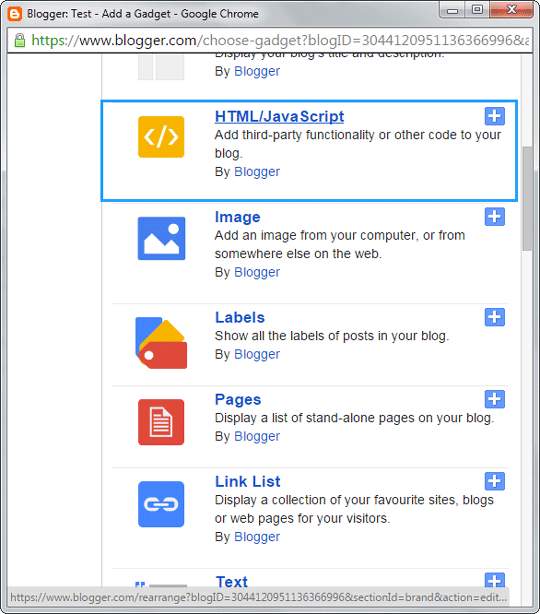
Now, you need to click on Layout from the sidebar and then select Add a Gadget. From the list of gadgets search for HTML/JavaScript and select it. Now you need to paste the following code in the HTML Text box.
<style type="text/css">
#blog-pager-newer-link {font-size:85%;width:200px;text-align:left;}
#blog-pager-older-link {font-size:85%;width:200px;text-align:right;}
</style>
<script type="text/javascript">
$(document).ready(function(){
var newerLink = $("a.blog-pager-newer-link").attr("href");
$("a.blog-pager-newer-link").load(newerLink+" .post-title:first", function() {
var newerLinkTitle = $("a.blog-pager-newer-link").text();
$("a.blog-pager-newer-link").text("<< " + newerLinkTitle);
});
var olderLink = $("a.blog-pager-older-link").attr("href");
$("a.blog-pager-older-link").load(olderLink+" .post-title:first", function() {
var olderLinkTitle = $("a.blog-pager-older-link").text();
$("a.blog-pager-older-link").text(olderLinkTitle + " >>");//rgt
});
});
</script>
Now in last you need to click on Save button.
You are done now. Now older and newer post links will be replaced with your post titles. We are sure it would have been proven helpful for you guys. If you have any queries to ask then lend them in the comment box. We shall get back to you as soon as possible.
great share brother
ReplyDeleteGlad you liked it.
Deleteit's really great and nice work thanks mbl
ReplyDeleteThanks, Kind regards.
DeleteGreat info, been trying for a long while to do this and your method worked 1st time. Cheers!
ReplyDeleteThanks, That worked for me :)
ReplyDeleteI removed my Older/Newer/Home buttons before I did my research and now I can't get them back. I've been trying to find a way to either get them back or get a substitute navigational option and I'm not sure what to expect here. I don't want to do the same mistake, but I'm getting a little desperate. Can you tell me
ReplyDeletea) what to expect, what it will look like
b) if I can remove it after adding it and
c) if I can add it even though I don't have Older/Newer buttons (tell me if, in the code, it removes the buttons and won't work if they're already removed)
d) if I'm making any sense?
I'm too young to understand all the technological terms so please keep it simple! Thank you!
We will soon write a tutorial on how to add older/newer post button stay tuned.
DeleteAwesome! Thank you for sharing, man!
ReplyDeleteYou have done it in very simple. I have found several methods but most of them are not working properly.
ReplyDelete